
We returned to class after 2 weeks with our posters. In week 3 we made a character using templates, layers, pen tool and basic shapes.
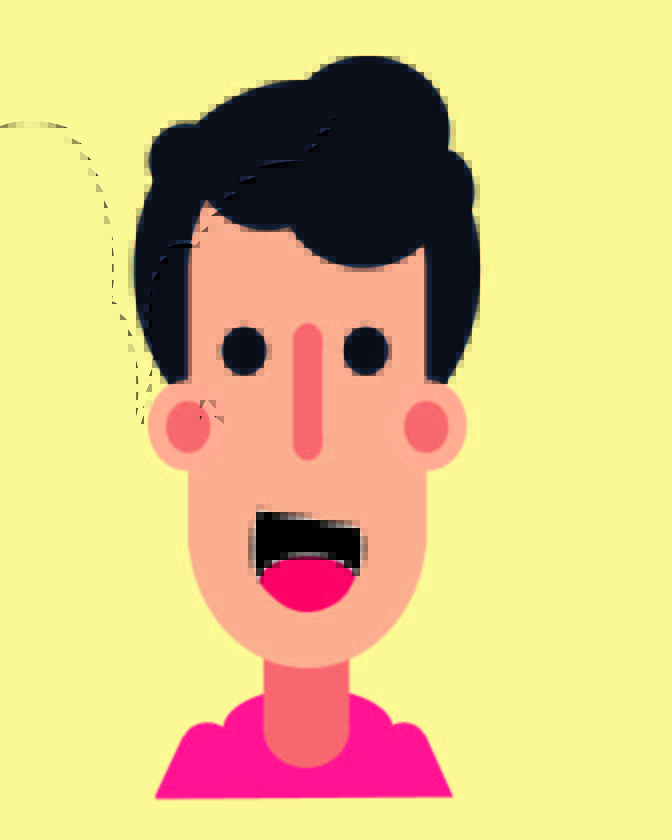
The first step to make a character is to identify the number of layers it needs to be built. Colour is also very important. To pick the same colour as the template – use the eyedropper tool. To make it easier – always name the layers. Use the pathfinder to unite objects in the same layer. Keep building up these layers one by one. To rearrange the layers click on the concerned layer and hold and drag it and drop it below or above any layer you desire.
We used an image from google as a template and created this character. This character was made using 11 layers.
Next we learnt how to use colour gradient and its different forms, colour pallets , nodes and their adjustments and how to change its angles. To get more than 1 colour in gradient, click on it and choose the desired colour. To remove a node, drag and drop it out of the box.
Blend tool is used to blend colors, shape, nodes, lines, opacity, texts and custom paths. To use this tool select the object and double click it and smoothen the colour and blend like desired. This tool can be used to blend objects as well – it does so by creating multiple copies of the same object and of the same colour. We also learnt the placement of objects on a path and placement of each object and their spacing.
Clip mask is my personal favorite – it crops a picture into a specific text or shape. Basically, the text or shape uses the image as a background. So you place an image on your artboard, type or draw over it, then select both and press Cntrl 7 and your clip mask will be ready.
We ended this lecture by sir reviewing our posters and guiding us on the same. We had to make the necessary changes and give it for grading the following week. Along with these 2 posters we also had to make the 3rd poster using the tools we learnt in this class.

 DISHA KALYANI